Talking to pod
You don't learn commands to use pod. You talk to the front desk in plain language, it shows you exactly what it's about to do, and nothing runs until you press Enter.
The front desk
Type pod in your Terminal and press Enter, and you're inside the studio. You'll see a bordered input box with a ❯ waiting for you. That box is the front desk, and it understands plain language, in any language. Telugu, Hindi, English, mixed: say what you want the way you'd say it to a person.
The front desk turns your words into the exact command, then shows it to you before running anything:
❯ make a 30-second teaser for my thriller, telugu, moody
produce "a teaser for my thriller" --duration 30 --language telugu --style "moody" --teaser
  Enter = run · e = edit · n = never mind
Three choices, always the same:
- Enter runs it as shown.
- e edits the command first (change a number, add a word).
- n means never mind. Nothing happens, nothing is spent.
If you already know the commands, you can type them directly, and both ways work. But talking is the intended way, and there's no penalty for it: the front desk translates, you confirm, the same command runs either way. The full command list lives on the commands page if you're curious what's under the hood.
The same front desk, in your browser
When you run pod, a page called Pod Studio opens in your browser at the same time as the Terminal. It opens on your films, a grid of everything you've made, each with its poster frame, a status label (at cost-gate, at shoot, finished), the credits it has spent so far, and a row of progress dots. Click a film to open it. If a production is already running, the studio skips the grid and drops you straight into it.
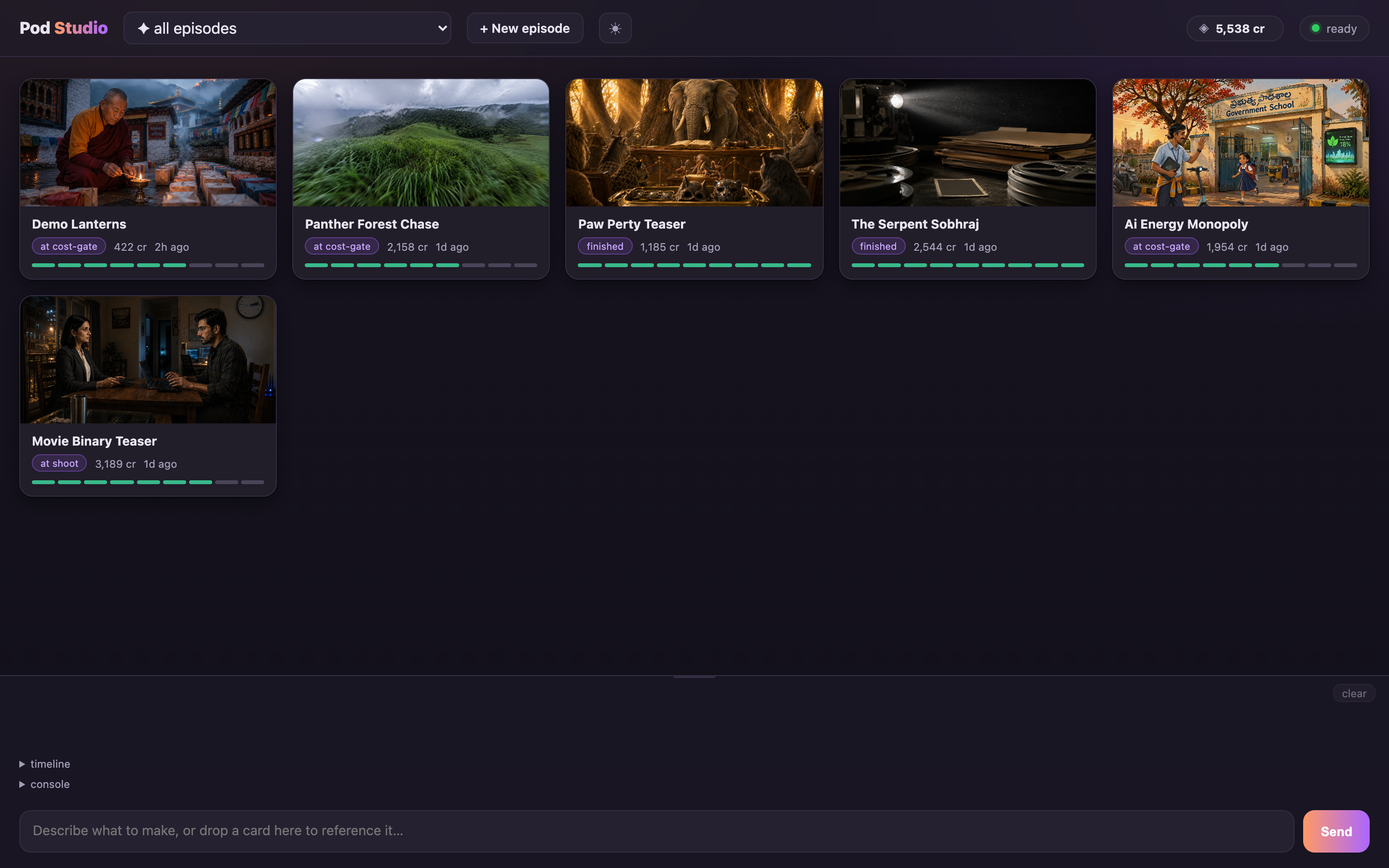
Two things live in the header wherever you are: your real credit balance (during a shoot a −N this run counter ticks up beside it, so you watch the spend happen), and a ☾/☀ toggle that flips the whole studio between light and dark. The studio follows your system to start with, then remembers whichever you choose.
Opening a film: the canvas
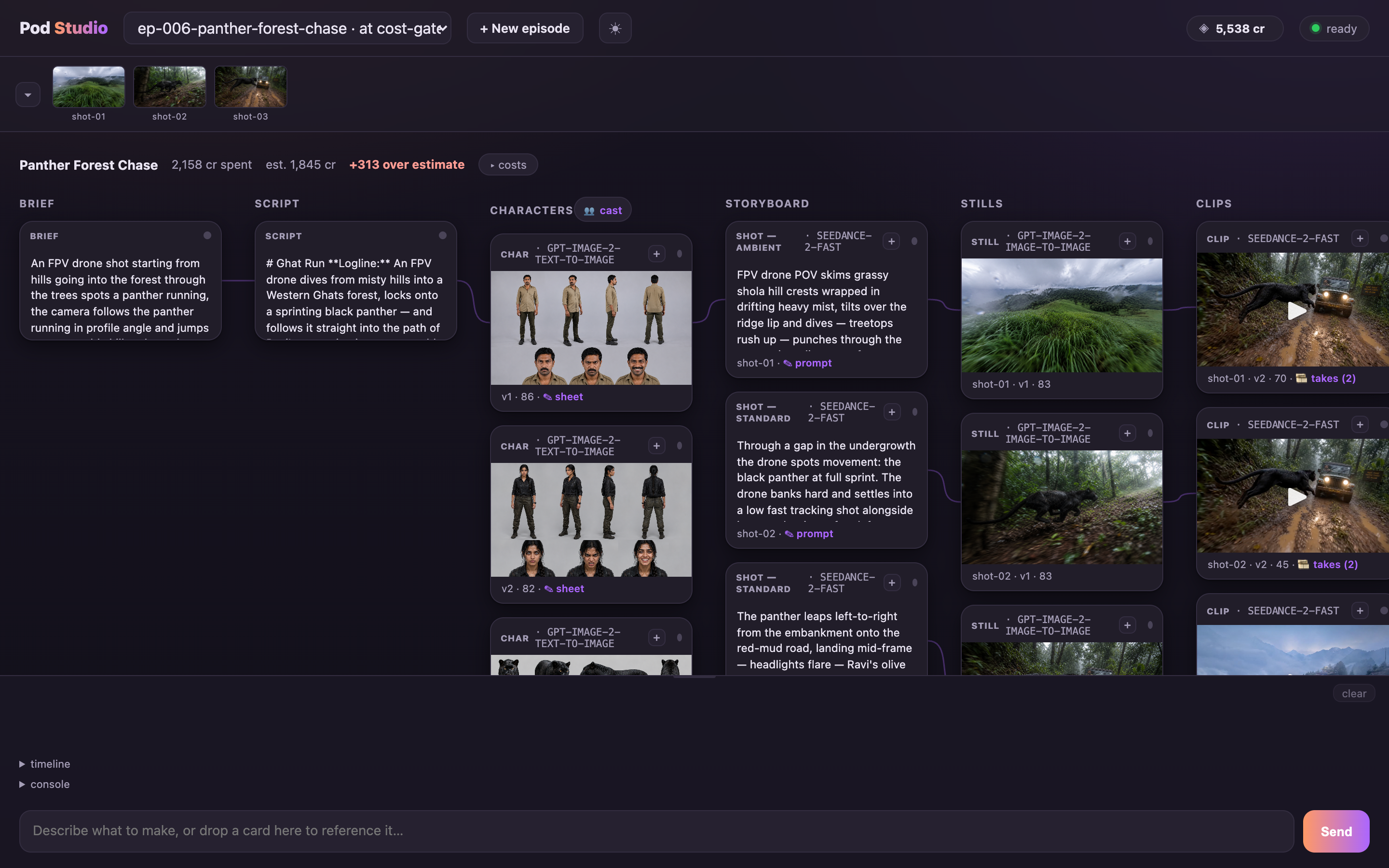
Click a film and its whole production fans out as visual cards on a studio wall, in pipeline order and joined by soft connectors: brief, script, characters, storyboard, stills, clips, audio, the final cut. Each card plays the real artifact (image, video, audio, or text) and is labelled with the AI model that made it (e.g. CLIP — SEEDANCE-2), its version, and its quality-check score. The canvas refreshes itself as pod works: clips and stills appear on the wall with no reload. A filmstrip of shot thumbnails runs along the top; click a thumbnail to jump straight to that shot's cards.
Below the canvas is a chat box, and it's the same front desk as the Terminal: type plain English, and pod proposes the exact command as a card with Run · Edit · Never mind buttons. Nothing runs, and no credits are spent, until you click Run. The two views are one pod; either drives, and they stay in sync. Your chat history is kept per film and survives a reload; a clear control wipes it when you want a clean slate. (Want the page to open on its own, or not at all? See pod ui and POD_NO_UI=1 on the commands page.)
That tally beside the title is worth a glance every time: it shows credits spent against the estimate you approved, and turns red the moment real spend crosses it (+313 over estimate). Open costs and it breaks down per shot, with how many attempts each one took. The whole money story lives on the credits & the cost gate page.
Point at a card and say "redo this"
This is the trick that makes the studio faster than typing. Clicking a card expands it; to reference it instead, hit its + button or drag it into the chat. It drops in as a little chip. Now you don't have to name anything: say "redo this" and pod builds the right command with the shot's id already filled in. No file paths, no shot numbers to remember: the card is the reference. You can drag a file in the same way (a screenplay PDF, a reference image, an audio clip) and it becomes a chip you can talk about: "make this into a 60-second episode".
  (drag the shot-05 clip card into the chat — it becomes a chip)
❯ [shot-05 clip]  redo this, make it a POV
redo "thriller-teaser" --shot shot-05  (make it a POV)
  Run · Edit · Never mind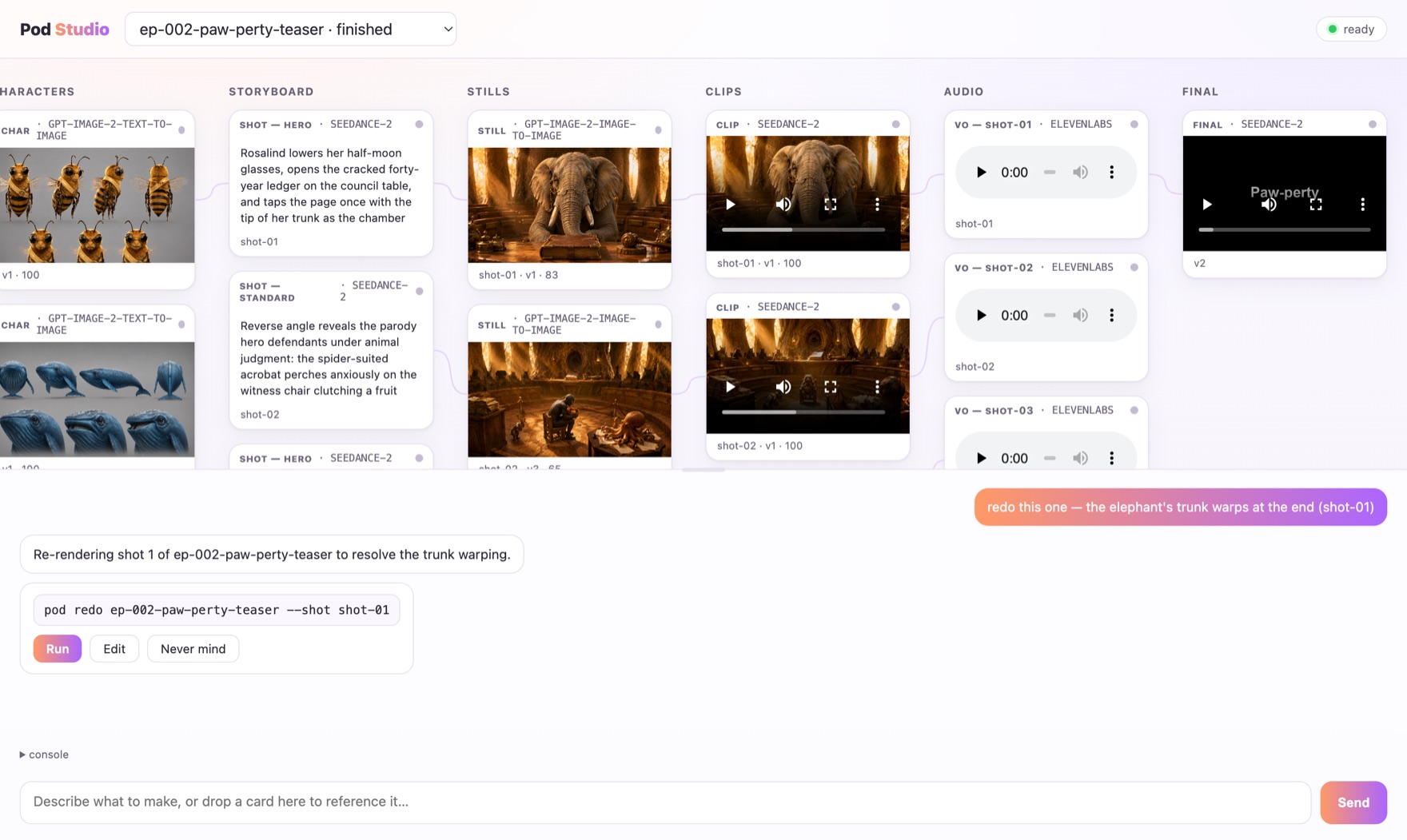
redo command. Nothing runs until you press Run.Open a card full-size and compare versions
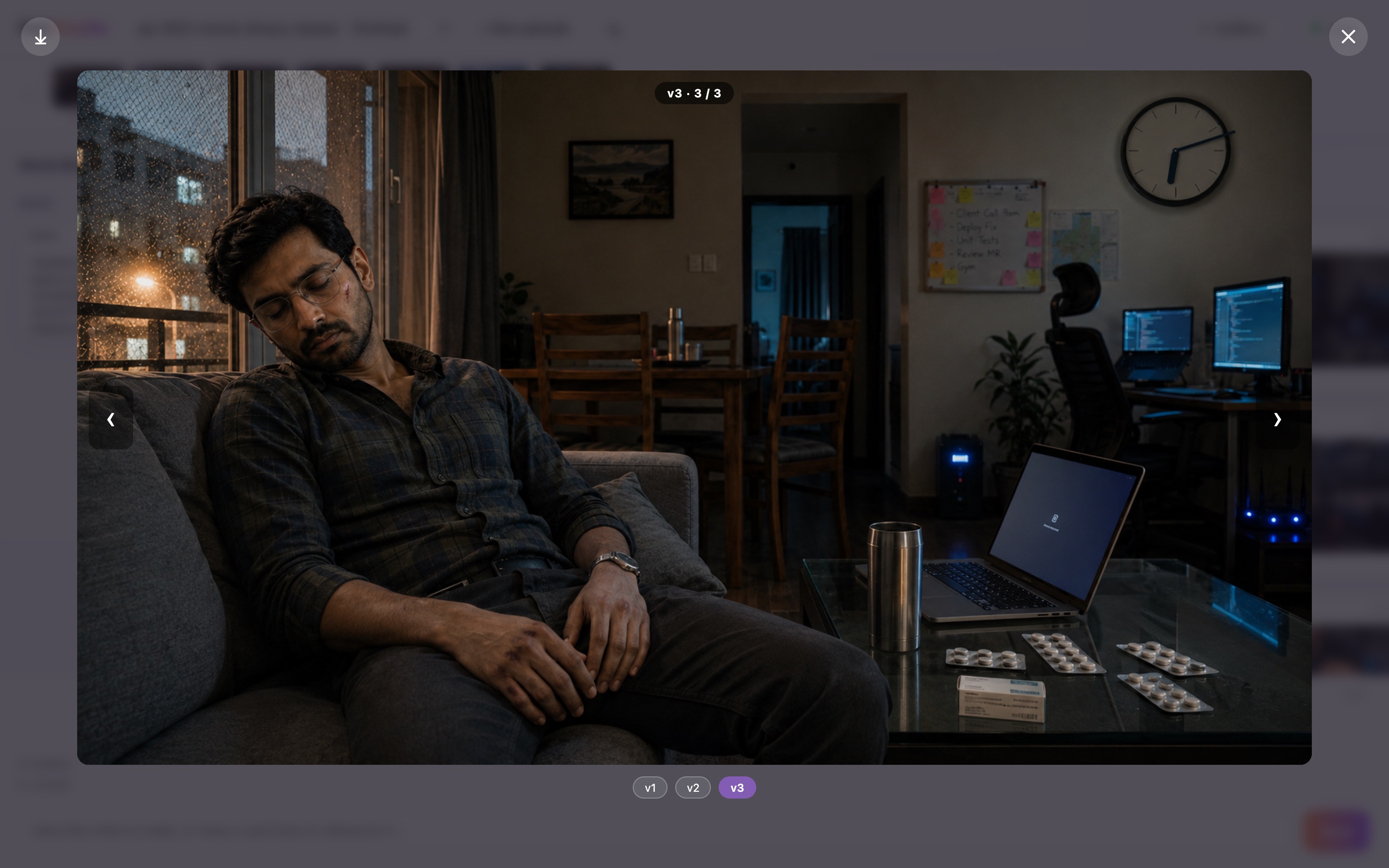
Expanding an image or clip gives it the whole screen. From there you can download it with the ⤓ button, step to the shot before or after with ← / →, and, when a shot has more than one version, turn on compare. It flips through every version at one fixed size: press ← / → (or tap the v1 v2 v3 chips) to step between them, and because the frame never moves, a change jumps right out. Stills and clips flip the same way. Comparing costs nothing: you're just looking at footage you already have.
Browse a shot's takes
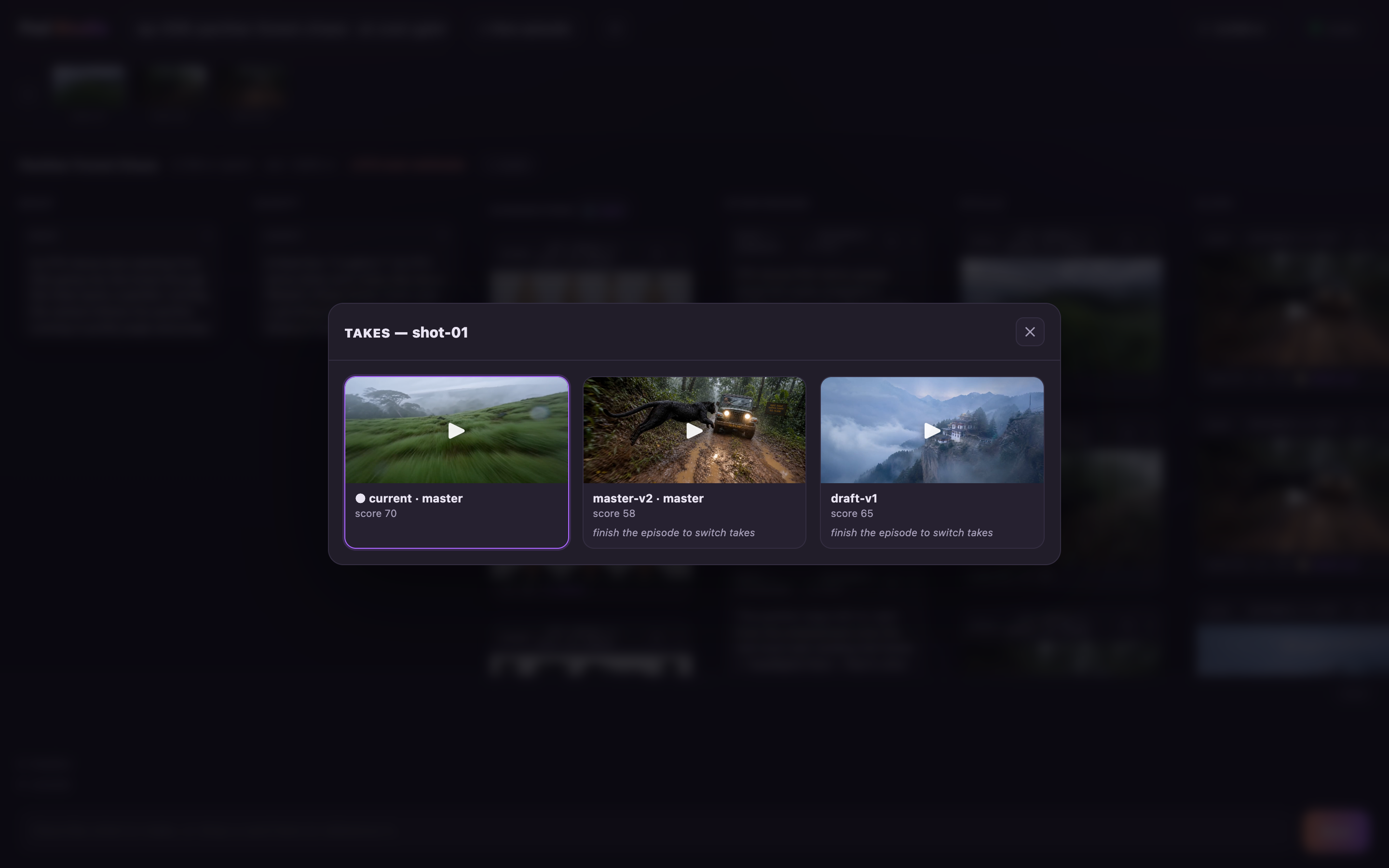
Every clip card carries a 🎞 takes button with a count. Open it and you'll see the take that's currently in the cut plus every alternate pod kept, each with its quality score. On a finished film, each alternate offers use this take. Click it and pod re-cuts the film using footage you already own. That's free: no new generation, no re-render, just a different take stitched into the same film. On a film that isn't finished yet the takes are read-only ("finish the episode to switch takes"). Swapping takes is something you do once the shoot is done.
The cast gallery
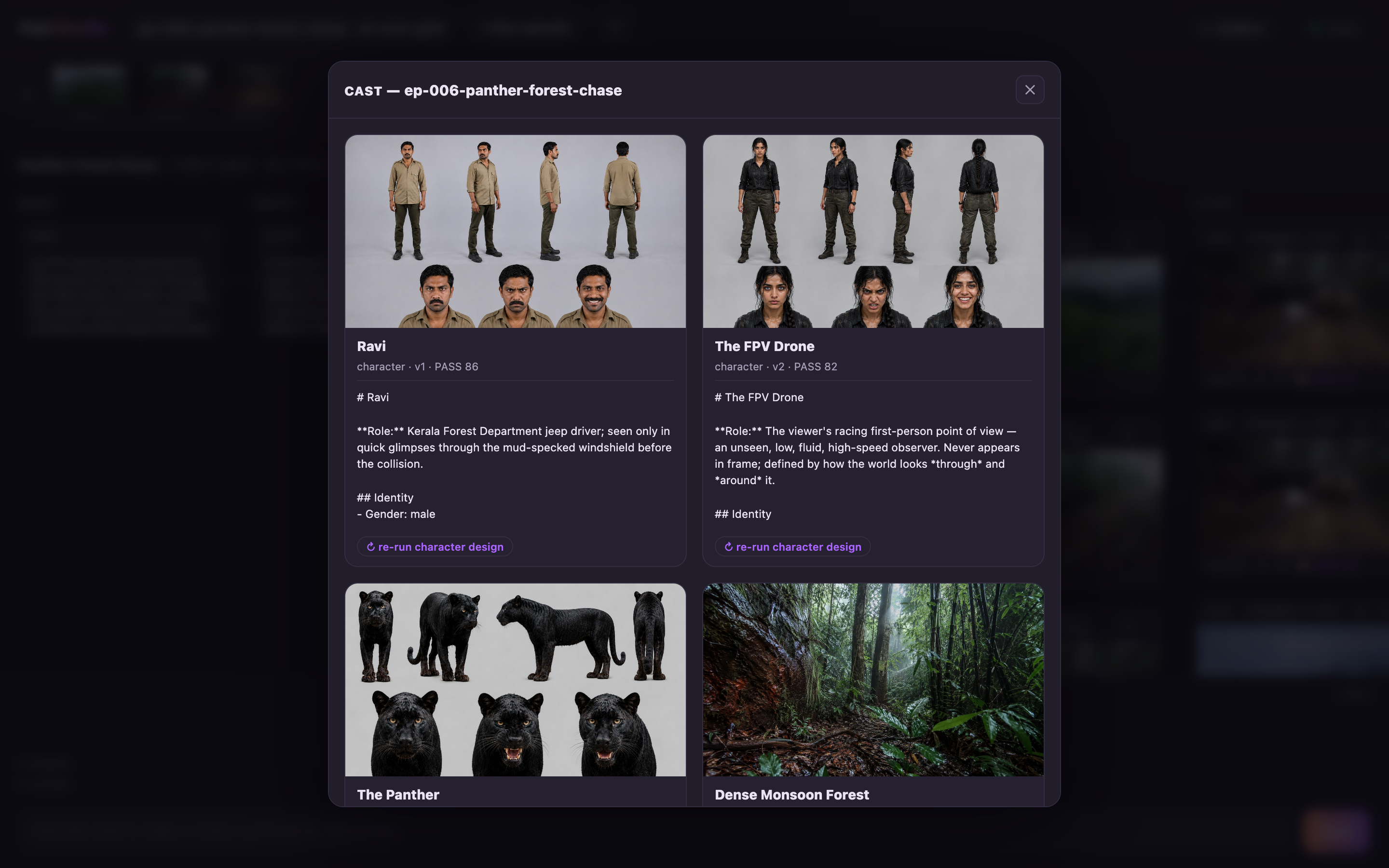
The 👥 cast button opens your characters and locations as a gallery: each one's turnaround sheet (the same face from every angle that keeps a character consistent across the film), its quality score, and its written design sheet. A re-run character design control is there if a face needs another pass, priced and confirmed like any generation, never silent.
Edit the words in place
The text pieces of a film are yours to edit directly in the studio. A ✎ control opens the brief, the script (in a scene-by-scene editor), a character sheet, or a shot prompt (✎ prompt on a storyboard card). When you save, pod re-checks what your change has made stale: the affected cards pick up an amber badge, and pod tells you what re-rendering them would cost. Crucially, nothing regenerates on its own: the edit is free, and footage only re-renders when you ask for it and approve the price at the cost gate. You can rewrite a line of dialogue at midnight without spending a credit.
The finished film: the player
When a film is done, its final card offers ▶ open player, a full player with a marker bar under the scrubber, one tick per shot. Click a tick to jump to that shot. Spot something you'd change? fix this shot takes you to that shot's cards and pre-types the redo command into the chat, but it does not send it. You still read it, and you still click Run. The studio never spends on your behalf; you stay the money gate, always.
Review gates happen here too
The status pill in the top-right corner tells you where things stand: green "ready", amber "producing…", and red "waiting for you", which means a review gate needs your answer in the chat. These are the same gates as the Terminal: answer with the Looks good / Stop buttons, or just type your changes in plain words. And the chat dock is yours to size: drag the grip pill at its top edge to make it taller or shorter, and pod remembers the height next time.
It nudges you when you've stepped away
You don't have to babysit a shoot. If you switch to another tab, pod raises a desktop notification when it needs an answer at a gate or when a run finishes. The browser tab's title also carries a little marker so you can tell at a glance: ● when pod is waiting for you, ▶ when it's still working.
There are a few keyboard shortcuts for the keen: / jumps your cursor into the chat box, ? shows the full shortcut list, Esc closes any open panel, and ← / → step through media in the expanded view. One thing is deliberately not on a shortcut: approving anything that spends money. That always stays a click, on purpose. No keystroke can ever cost you credits by accident.
It finds your files
You don't need to know where files live or how to type their paths. Mention a file by a loose name and pod looks for it in your Desktop, Downloads and Documents folders:
❯ produce episode 2 of the basti pdf
  pod finds "Basti V4 EP 1-30.pdf" in Downloads, slices out episode 2
PDFs, .txt and .md screenplays all work. If a PDF holds thirty episodes, pod slices out exactly the one you asked for. If the PDF turns out to be a scan (images of pages, not text), pod says so and asks you to export it as text instead. A finished screenplay automatically switches pod into script-locked mode: scenes adapted faithfully, dialogue kept verbatim in its original language, and pod never invents lines. See your own media for bringing in images, clips and audio too.
It remembers you
pod keeps memory between sessions. Close your laptop mid-film, come back tomorrow, type pod, and it greets you with where your last film was and offers to resume from the exact checkpoint. Approved work is never redone, and paid renders are never paid for twice.
It also learns your habits. After a couple of productions, whenever a question comes up that you always answer the same way, pod offers "your usual" (say, telugu · 9:16) instead of asking from scratch. It's still confirmed, never applied silently: you say yes, or you say something else. "The usual" also works when resuming.
The same plain-language ease carries through the whole production. At every review gate you can just describe changes ("make the ending happier", "give Meena a red saree", "use omni for the hero shots") and pod maps your words onto the right piece of the film. How the gates work is covered in gates; the camera vocabulary pod speaks is in camera language.
Explore mode: when you don't know what you want yet
Sometimes you have a subject, not a film. Type explore with the subject and pod brainstorms with you:
❯ explore "brainstorm some ideas for a coffee brand ad"
  pod pitches 4–5 distinct concepts, each with a look and a format
  pick one → pod produces it
You get four or five genuinely different directions, each with its own visual look and format. Pick the one that lands, and production begins from there.
The input box is built to be forgiving
The box you type into has a few comforts designed for people who write scripts, not code:
- Tab completion. Press Tab and pod finishes what you started: command words and your own episode names. Camera terms complete too, including multi-word ones ("golden ho" + Tab → "golden hour").
- Arrows never eat your text. ↑/↓ browse your history only when the line is empty. If you've typed something, the arrows can never delete it out from under you.
- Paste whole scripts safely. Paste an entire screenplay into the box. It lands as one block, exactly as you copied it, no matter how many lines it has.
help, exit, and Ctrl-C
help: type it any time to see what you can say and do.exitleaves the studio and returns you to a plain Terminal. Your films stay saved on your computer underepisodes/.- Ctrl-C cancels whatever job is running, but never kicks you out of the studio. Progress is checkpointed, so a cancelled production resumes later from where it stopped: just say
resume.
demo. It renders a free 5-second clip entirely on your own machine, no credits, no internet generation.Ready to say something? Start with your first film, or read how the three working modes decide how much pod checks in with you.